Adding a Private Repository to Your Project
This document outlines the steps involved in adding a repository to your existing CyberWacht project.
Prerequisites:
- A GitHub account with the necessary permissions to access the repository
Steps:
Navigate to Project Settings:
- Click on the settings icon next to your project name in the top left corner.
- On the project overview page, you will find a button labeled Repositories.”
Click the Add Repository Button:
- On the Repositories page, you will see a button labeled Add Repository.
- Click this button to initiate the repository addition process.
Provide Repository Details:
-
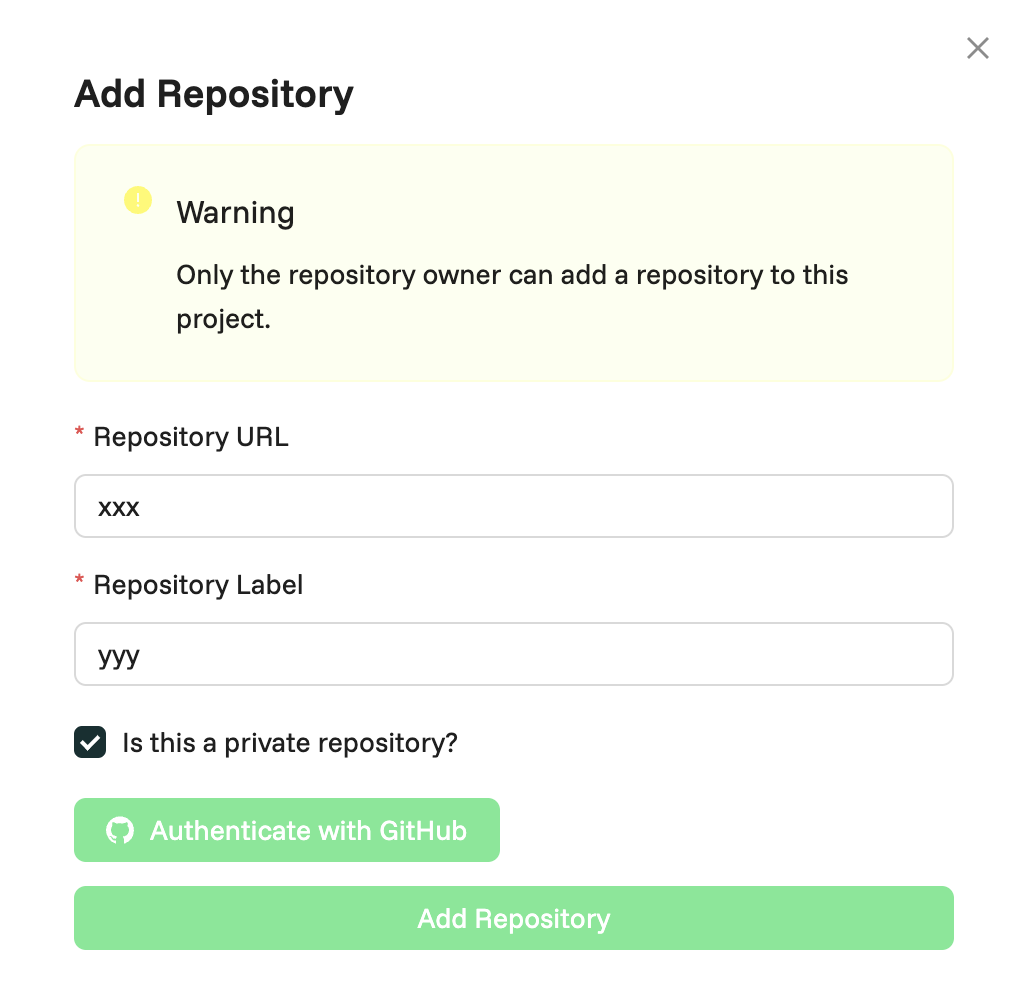
A modal window will appear where you need to provide the following information:
- Repository URL: Enter the URL of the Git repository you want to add.
- Repository Label: Add an optional label to identify the repository within the project.
- Is this a private repository?: Check this box if the repository is private. This will trigger the GitHub authentication process.
Authenticate with GitHub:
- If you checked the Is this a private repository? box, you will be prompted to authenticate with GitHub.
- Click the Authenticate with GitHub button.
- Enter your GitHub credentials (username and password) in the popup window.
- Click the Sign in button to proceed.

Grant Repository Access:
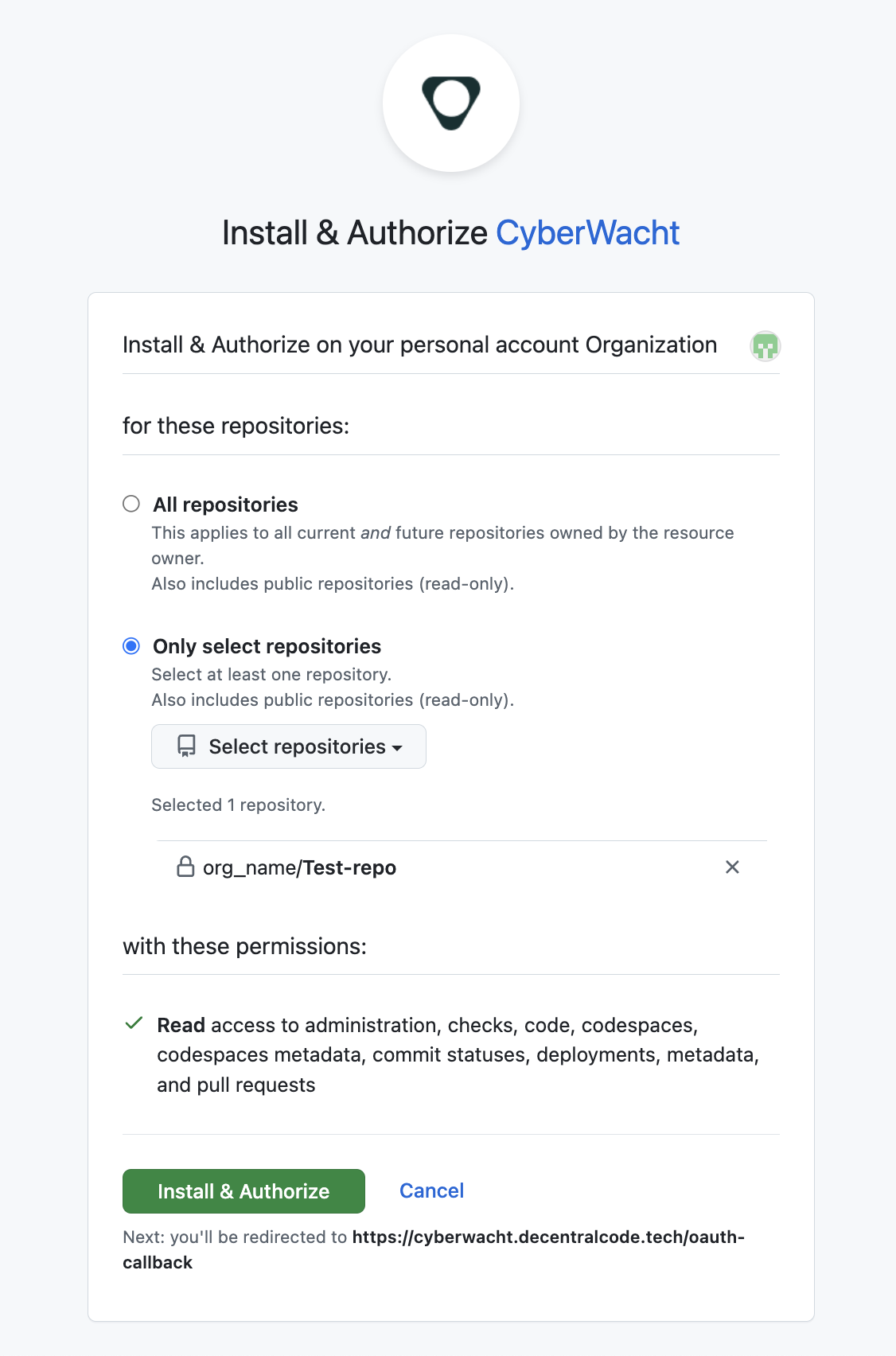
- After successful authentication, you will be redirected to a page where you can grant CyberWacht access to your repository.
- Select the desired repository from the list and click the Install & Authorize button.
step 1: Select the repositary

step 2: Click the Install & Authorize
Confirm Authorization:
Follow these steps to verify the authorization
-
Log in to Your GitHub Account
Access your GitHub account by visiting github.com and logging in. -
Access Your Profile Settings
- Click on your profile picture in the upper-right corner of the page.
- Select Settings from the dropdown menu.
-
Navigate to Applications
- In the left-hand sidebar, click on “Applications”.
-
View Authorized OAuth Apps
- Click on the “Authorized OAuth Apps” tab.
- This tab will display a list of all applications that have been granted access to your GitHub account.
Add Repository to Project:
- Once the installation is complete, the repository will be added to your CyberWacht project.
- You can now initiate scans and analyze the code for vulnerabilities.
Additional Tips:
- Ensure that your GitHub account has the necessary permissions to access the repository.
- If you encounter any issues during the process, refer to the CyberWacht documentation or contact their support team.